You type a web address – say www.facebook.com – in the web browser, your computer queries a DNS server to find the corresponding IP address where that site is located and once it has that information, it routes your browser to the correct website.
That is a simplified definition of DNS but, behind the scenes, several parties could get involved as soon as your computer asks for the IP address of a domain name. There’s the Resolving Name Server, the Root Name Server, the TLD Name Server and finally the Authoritative Name Server.
Confused? You don’t have to be as here’s an informative short video that explains the entire DNS workflow in simple English.
Even if you know the basics of DNS, do watch this video and you might end up learning a couple of new concepts around DNS and how it works. The video is courtesy learnDNS.com.
Speaking of DNS, do check our previous tutorials on setting up OpenDNS, Google DNS, learn how to compare two DNS services and know about scenarios when you should not change your DNS server and let it point to your ISP’s default DNS server.
Tip: Find the Name Servers of a Web Domain
If you would like to know about the Authoritative Name Server of any web domain, the one that will most definitely know the location of the IP address of that domain, follow these steps.
Open the command prompt windows by typing CMD in the Windows Run box.
On the command prompt, type NSLOOKUP and hit Enter.
Now type set querytype=soa without the quotes and hit Enter. Sentence case matters and there should be no extra spaces.
Finally type any domain name and in the results, the primary name server is the authoritative name server of that domain.
Saturday, March 03, 2012


Friday, March 02, 2012
What is HTML5 :An introduction
HTML5 is a language for structuring and presenting content for the World Wide Web, and is a core technology of the Internet originally proposed by Opera Software.It is the fifth revision of the HTML standard (created in 1990 and standardized as HTML4 as of 1997)and as of March 2012 is still under development. Its core aims have been to improve the language with support for the latest multimedia while keeping it easily readable by humans and consistently understood by computers and devices (web browsers, parsers, etc.). HTML5 is intended to subsume not only HTML 4, but XHTML 1 and DOM Level 2 HTML as well.
The remaining doubts can be cleared by this image what new things HTML5 has to offer.

The remaining doubts can be cleared by this image what new things HTML5 has to offer.

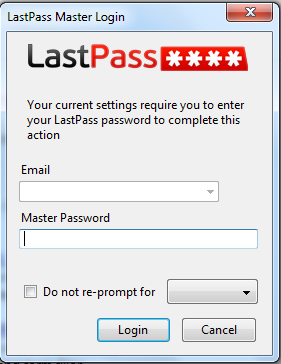
LastPass easy to use Password Manager
Tuesday, February 21, 2012
Create HTML 5, CS5, CS4, Web 2.0 Style Logo & Icons with Icon Generator Pro
I was searching on internet found out this internet site and i wanted to create logo anew project i was working on.Getting decent logo design is not only difficult task but also expensive affair, added to this is most services offers limited numbers of revisions or design concept. But if you are looking some cheap logo or icon design similar to HTML 5 and Photoshop CS5 icon then here must have utility, Icon Generator Pro & Lite.
As the name suggests, Icon Generator Pro lets you to quickly generate logo and icons of different size based on HTML5, CS5, CS4 or star badge. Each icon or logo has its own different options like adjusting background color, changing text, adding custom image, adjusting contrast or glare etc.
Once you have customized icon design you can save the icon in different sizes such as 128x128px, 48x48px 32x32px or 16x16px of favicon size. If you don’t want to download this tool then you can also generate icons online by accessing developer website http://icon-generator.net.
As the name suggests, Icon Generator Pro lets you to quickly generate logo and icons of different size based on HTML5, CS5, CS4 or star badge. Each icon or logo has its own different options like adjusting background color, changing text, adding custom image, adjusting contrast or glare etc.
Once you have customized icon design you can save the icon in different sizes such as 128x128px, 48x48px 32x32px or 16x16px of favicon size. If you don’t want to download this tool then you can also generate icons online by accessing developer website http://icon-generator.net.
Friday, February 10, 2012

Tuesday, January 17, 2012
Post A Status On Facebook Via Blackberry, Android Without Installing Any App or Create your customized Status
You can post status on your facebook wall from a device like Blackberry, IPhone, Android without owning it and installing any app on facebook, just follow the steps below:
1. Login to your account and enter the name of the device in the search field from which you want to post on your wall (e.g. Blackberry, Android, Iphone5). To post using ‘Motorola Milestone’, enter “Motorola Milestone” in search field.
2. Now instead of clicking on the app, click on ‘See more results from for Motorola Milestone’.
3. Now in search filters on the left side select ‘Apps’.
4. Now instead of clicking ‘Go to App’, click on the ‘Motorola Milestone’ to open the page of Motorola Milestone, which is http://www.facebook.com/apps/application.php?id=171695282841526
5. Now copy the application id which is ‘171695282841526’ in this case and put after the ‘api_key=’ in the following URL:
http://www.facebook.com/connect/prompt_feed.php?api_key=
Now the resulting URL will be:
http://www.facebook.com/connect/prompt_feed.php?api_key=171695282841526
Now open the URL and you will be able to post on your wall via ‘Motorola Milestone’ without owning it.
Here are some more:
1. LG Optimus 2X: http://www.facebook.com/connect/prompt_feed.php?api_key=219025804780612
2. Iphone 5: http://www.facebook.com/connect/prompt_feed.php?api_key=241614112527830
3. Android: http://www.facebook.com/connect/prompt_feed.php?api_key=5849629380
4. Android Client: http://www.facebook.com/connect/prompt_feed.php?api_key=117829661563986
5. DELL Venue Pro: http://www.facebook.com/connect/prompt_feed.php?api_key=138984386182169
Or you can make your own application to publish status as i have made mine:
1. Being Ghanu: https://www.facebook.com/connect/prompt_feed.php?api_key=161498103959181
1. Login to your account and enter the name of the device in the search field from which you want to post on your wall (e.g. Blackberry, Android, Iphone5). To post using ‘Motorola Milestone’, enter “Motorola Milestone” in search field.
2. Now instead of clicking on the app, click on ‘See more results from for Motorola Milestone’.
3. Now in search filters on the left side select ‘Apps’.
4. Now instead of clicking ‘Go to App’, click on the ‘Motorola Milestone’ to open the page of Motorola Milestone, which is http://www.facebook.com/apps/application.php?id=171695282841526
5. Now copy the application id which is ‘171695282841526’ in this case and put after the ‘api_key=’ in the following URL:
http://www.facebook.com/connect/prompt_feed.php?api_key=
Now the resulting URL will be:
http://www.facebook.com/connect/prompt_feed.php?api_key=171695282841526
Now open the URL and you will be able to post on your wall via ‘Motorola Milestone’ without owning it.
Here are some more:
1. LG Optimus 2X: http://www.facebook.com/connect/prompt_feed.php?api_key=219025804780612
2. Iphone 5: http://www.facebook.com/connect/prompt_feed.php?api_key=241614112527830
3. Android: http://www.facebook.com/connect/prompt_feed.php?api_key=5849629380
4. Android Client: http://www.facebook.com/connect/prompt_feed.php?api_key=117829661563986
5. DELL Venue Pro: http://www.facebook.com/connect/prompt_feed.php?api_key=138984386182169
Or you can make your own application to publish status as i have made mine:
1. Being Ghanu: https://www.facebook.com/connect/prompt_feed.php?api_key=161498103959181
Saturday, January 14, 2012
Save Missed Calls to your Google Tasks with Any.do [Android]
Any.do is my favorite task manager for mobile. It is currently available for Android phones only but they are working on an iPhone app and also a web-based version that should make it available to all the other mobile platforms.
Any.do has a beautiful UI with large fonts and there’s voice input so you can add new tasks by speaking instead of typing on that small keyboard. My favorite feature though is the app's integration with Google Tasks. Any.do can sync your task list with Gmail both ways so you always have access to your tasks.

Add Missed Calls to your Pending Tasks List
The new version of Any.do’s Android app adds another interesting feature.
If there’s a missed call on your mobile phone and you are too busy to return the call at that time, you can quickly add it to your pending task list with a simple click. Thus, you would remember to call that person and since Any.do synchronizes with Google Tasks, all your missed call notifications would also be available inside Gmail.
Any.do has a beautiful UI with large fonts and there’s voice input so you can add new tasks by speaking instead of typing on that small keyboard. My favorite feature though is the app's integration with Google Tasks. Any.do can sync your task list with Gmail both ways so you always have access to your tasks.

Add Missed Calls to your Pending Tasks List
The new version of Any.do’s Android app adds another interesting feature.
If there’s a missed call on your mobile phone and you are too busy to return the call at that time, you can quickly add it to your pending task list with a simple click. Thus, you would remember to call that person and since Any.do synchronizes with Google Tasks, all your missed call notifications would also be available inside Gmail.
Subscribe to:
Posts (Atom)


